How to record a website and turn it into a device video
Record a smooth, clean capture of any website in Chrome, then place it on a 3D MacBook, display or phone and add camera moves: page prep, scroll styles, cursor choices and export settings.
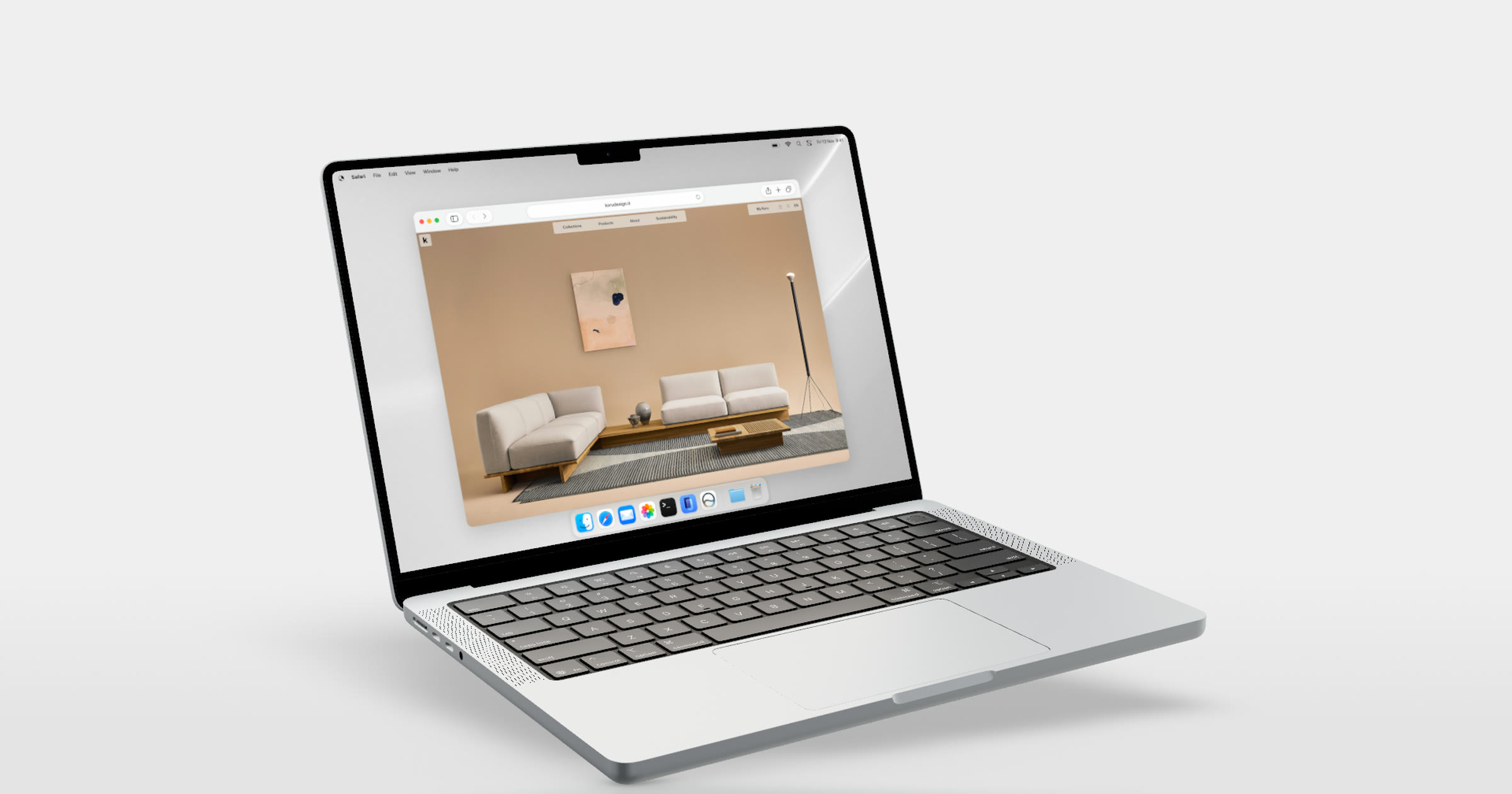
Short answer: Prepare the page first (real content, banners hidden, the window at the shape you want), then record the browser tab rather than your whole screen. The Ultramock Chrome extension records the current tab at 60fps, can scroll the page for you in natural sections or one continuous motion, and sends the recording straight into the editor. There, put it on a 3D MacBook, display or phone, add a camera move or two, and export a video. Capturing and adding to your open project is free.
A website recording is the most direct way to show a web product working, and the easiest to get wrong. A stuttering trackpad scroll, a cookie banner, a notification sliding in: each one pulls the eye away from the product. Most of the fix happens before you press record.
Record the tab, not the screen
A whole-screen recording captures everything: other windows, the menu bar, the Dock, your notifications. Cropping it afterwards loses resolution and still leaves the browser's own toolbar. Recording only the tab gives you the page and nothing else, at a consistent size, ready to sit inside a device. If the shot needs a browser around it, add a clean one in the mockup rather than recording yours with its extensions and bookmarks.
The Ultramock Chrome extension does exactly this: it captures a still of the visible page or records the current tab. It doesn't record the desktop or other apps. It installs in Chrome and in Chromium browsers that accept Chrome Web Store items, such as Edge, Brave and Arc.
Ten minutes of prep saves a re-record
- Use real content. A demo account with believable data; empty dashboards read as unfinished in motion.
- Set the window to the shape of the screen. A wide window suits a laptop or display; the page's mobile layout suits a phone.
- Hide what isn't the product. Cookie banners, chat bubbles, debug badges: the extension lets you click elements away before you capture, with undo and reset.
- Quiet your machine. Do Not Disturb on, noisy tabs closed, fonts and images fully loaded.
- Decide the path. Know which sections or clicks you will show, in order. One clear pass beats a long wander.
Pick the scroll that matches the story
| Scroll style | What it does | Use it for |
|---|---|---|
| Natural sections | Scrolls a section at a time, pausing at each | Landing pages and feature tours, where each section is a beat |
| One continuous motion | Scrolls the whole page smoothly | Long pages, changelogs and galleries, to show scale |
| By hand | You scroll and click while it records | Interactions: a menu, a form, a flow |
Auto-scroll is steadier than a trackpad, which is what a scrolling shot depends on, and it hides the cursor since nothing is driving it. When you drive the page yourself, choose your ordinary pointer or a clean cursor drawn for presentation. Record short takes, one section or interaction each; they are easier to trim and reorder than one long run.
When you stop, preview the capture and send it to Ultramock: replace what is in the editor's viewport, or add it to the timeline as a new shot. Bringing a capture into the Ultramock session in your browser works without signing in; starting a new cloud project from a capture is Pro. Already have a recording? Drag it into the editor instead.
Put it on the device the product lives on
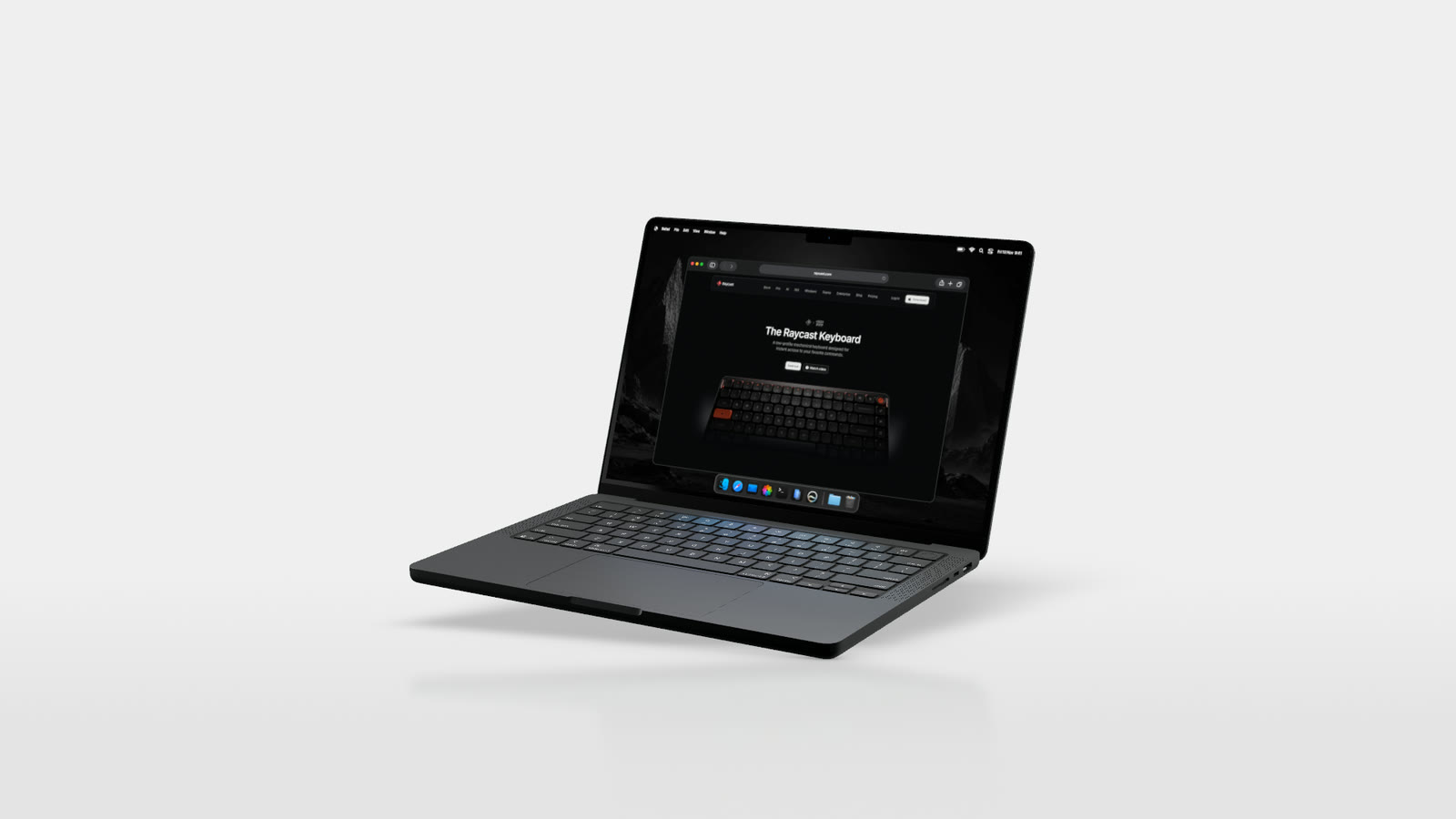
A desktop site belongs on a laptop or display, inside a browser window. Shown: raycast.com.
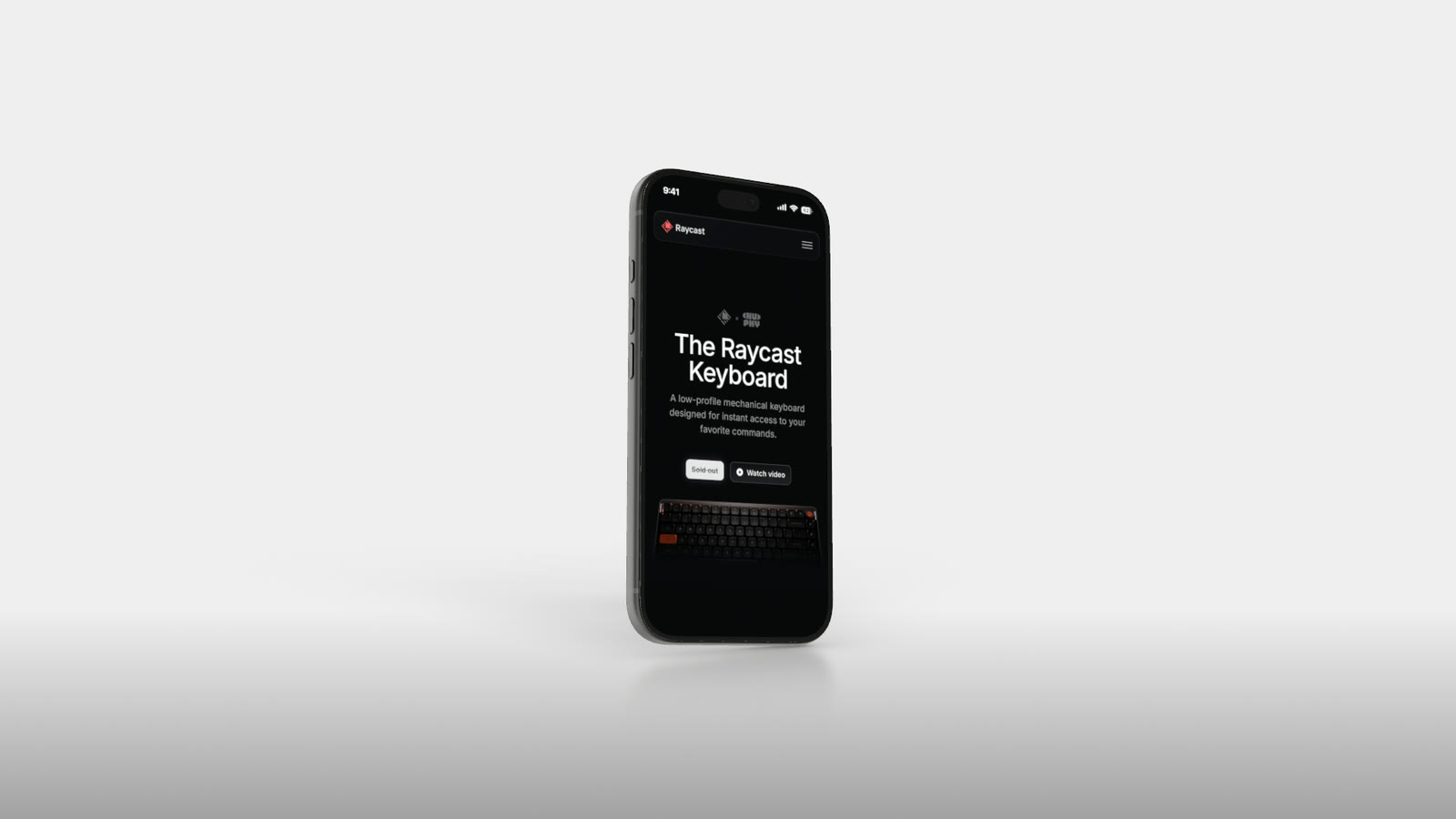
Record the mobile layout separately for the phone. Shown: raycast.com.
- A MacBook for most websites and web apps, with the macOS menu bar, a browser window and the Dock if you want a real desktop. The MacBook mockups page shows real sites set up this way.
- A large display for dashboards and dense tools: Studio Display, XDR Display or HomeView (display mockups).
- A phone for your mobile site, recorded from the page's mobile layout.
Then add motion:
- Trim the recording to the part that makes the point.
- Start wide, then move in, so the viewer knows what they are looking at before the camera pushes towards what matters.
- Or let auto-motion compose it. Mark focus areas on the screen and Ultramock builds an editable camera move around them.
- Give each take its own shot, with a short text layer where a line of context helps, and music or a voiceover on the audio track.
Keep the camera calmer than the page. If the page is scrolling, a slow push is enough; a camera move on top of a fast scroll makes both hard to follow. From one screenshot to a launch video covers easing and pacing.
Export at the size the placement needs
Free gets five images a week with no account, and one video a week up to 30 seconds with a free account, all with an Ultramock watermark. Free video is 1280 × 720 landscape, fine for a quick share or a draft review; the free mockup video page has the details. Pro ($20 a month, or $120 a year) removes the watermark and adds video up to 4K, 60 fps, portrait, square and custom sizes, and motion blur. For scroll-heavy videos, 60 fps keeps moving text smooth.
The same recording can serve several placements: a 16:9 homepage hero, a Product Hunt gallery video (sizes in our gallery guide) and a portrait cut for social. Check the composition at each shape rather than assuming one crop works everywhere.
Before recording a logged-in product, check the screen for customer names, emails or anything else you wouldn't publish, and use a demo account where you can. What the extension can read is set out on the extension page.
Frequently asked questions
Can the extension record my whole desktop or another app? No. It records the current browser tab. For a desktop app, use your operating system's screen recorder and upload the file to the editor.
Do I need an account? Not to capture and bring a page into the Ultramock session in your browser. Exporting a video on Free needs a free account, and starting a new cloud project from a capture needs Pro.
The short version
Prepare the page, record the tab rather than the screen, choose the scroll style that matches the story, and send the take straight into the editor. Put it on the device your product lives on, keep the camera calmer than the page, and export at the size the destination needs.
Make your product look premium
Your work deserves more than just a screenshot. No download, no account required. Check it out now.
Open editor