Android mockups: how to show your app on a Galaxy and a Pixel
How to make Android device mockups that look real: capture clean screens with adb, tidy the status bar, choose between Galaxy and Pixel, and know where Google Play wants plain screenshots instead.
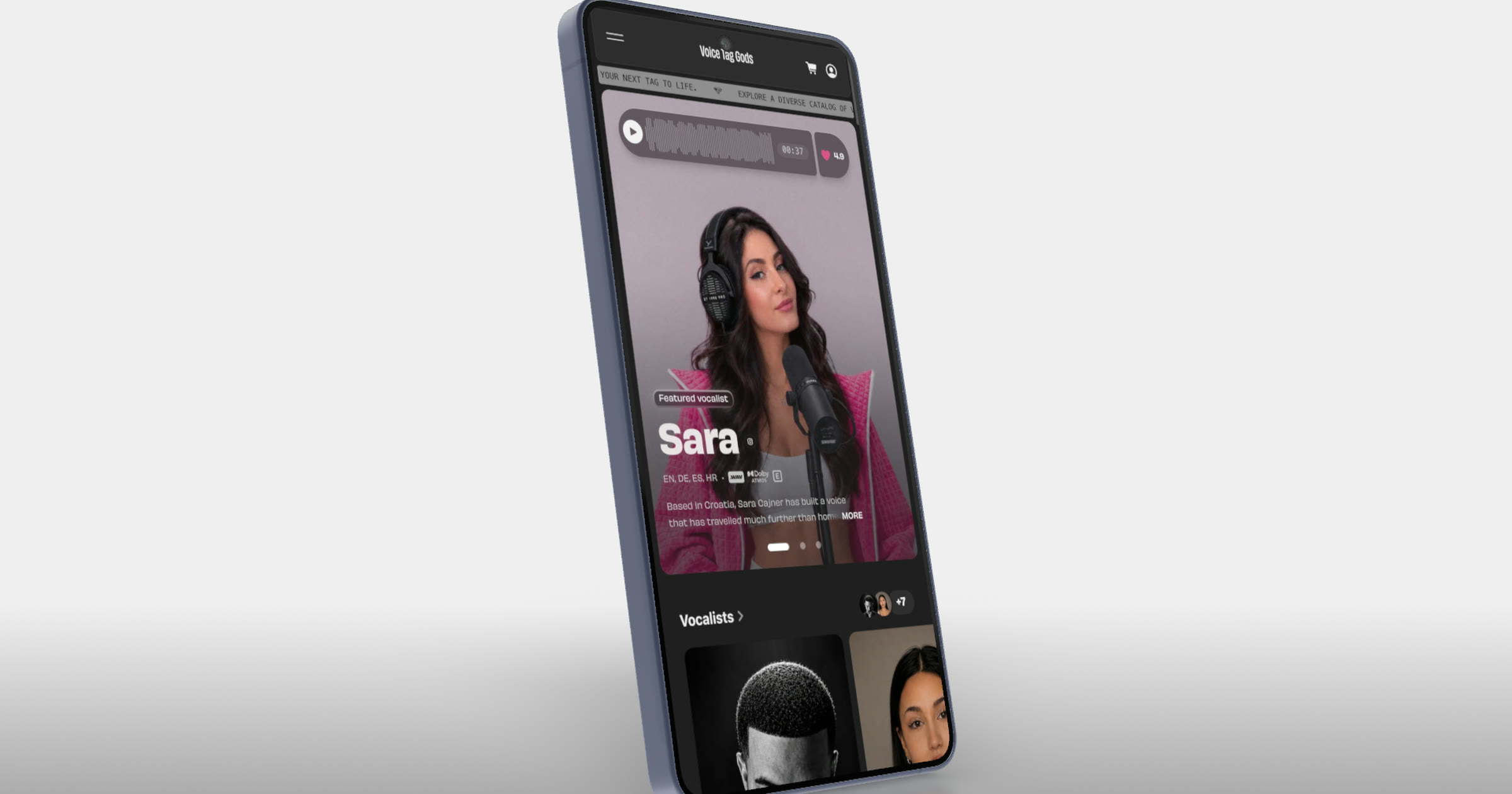
Short answer: Ultramock has two Android phones in 3D, the Samsung Galaxy S26 Ultra and the Google Pixel 10 Pro, and both are free to use. Capture a clean screenshot or screen recording at the phone's native resolution, tidy the status bar with Android's demo mode, put the screen on the phone and turn it so the edge and camera read. Use the result on your website, launch posts and decks. For Google Play screenshots, Google advises against device imagery, so upload captures of the app itself there.
Mockups often default to an iPhone, which leaves an Android app shown on hardware its users don't carry. Putting it on a phone your audience recognises tells them it was made for them.
Pick the phone your audience holds
Ultramock has 19 3D devices, and two of them run Android. Both are free on every plan and take a screenshot or a screen recording as their screen.
| Phone | Use it when |
|---|---|
| Google Pixel 10 Pro | You want the clearest signal of Android itself: developer tools, apps that follow Material Design closely. |
| Samsung Galaxy S26 Ultra | Your audience skews to Samsung, or the app is built around a large screen. |
Whichever you pick, keep it across every image and shot of a set so it reads as a series. When coverage is the point ("on Android and iPhone"), put both platforms side by side (see below). The Android mockups page shows both phones with real mobile sites on screen.
Capture at native resolution
The mockup is only as sharp as the screen inside it. Capture at the phone's own resolution and never upscale: a soft screen shows the moment the camera moves in.
Screenshots. On a Pixel, press the power and volume-down buttons together. From a computer, adb saves the image straight to your desktop:
adb exec-out screencap -p > screen.png
Screen recordings. For a video mockup:
adb shell screenrecord /sdcard/demo.mp4
adb pull /sdcard/demo.mp4
Android's adb documentation (checked on 13 November 2026) notes that screenrecord stops after three minutes by default and records no audio. That suits mockups: record short takes, one moment each, and add music later. The Android Studio emulator also has a screenshot button, handy for a specific screen size or a clean test account.
Before you capture, fill the app with realistic data, pick light or dark mode and keep it across the set, and close anything that pops over the interface.
Tidy the status bar with demo mode
A real status bar makes the screen read as a phone, but a low battery and a row of notification icons pull the eye away. Android's System UI demo mode fixes that (AOSP documentation, checked on 13 November 2026):
adb shell settings put global sysui_demo_allowed 1
adb shell am broadcast -a com.android.systemui.demo -e command enter
adb shell am broadcast -a com.android.systemui.demo -e command clock -e hhmm 1200
adb shell am broadcast -a com.android.systemui.demo -e command battery -e level 100 -e plugged false
adb shell am broadcast -a com.android.systemui.demo -e command network -e wifi show -e level 4
adb shell am broadcast -a com.android.systemui.demo -e command notifications -e visible false
Take your captures, then leave demo mode with -e command exit.
Turn the phone so it reads as a phone
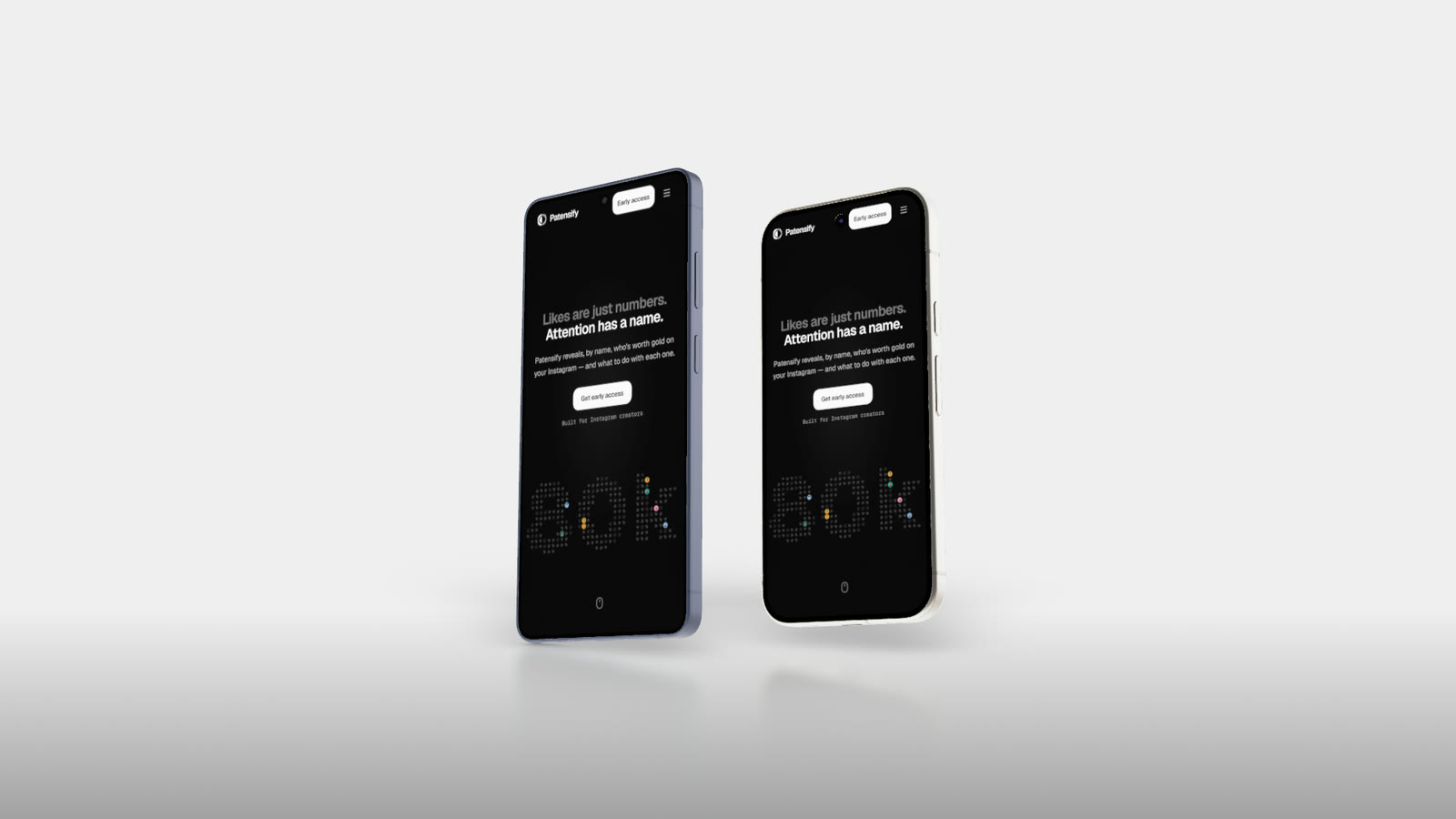
The same screen on a Galaxy and a Pixel: the frames differ more than you'd expect. Shown: patensify.com.
In Ultramock:
- Choose the phone: the Galaxy S26 Ultra or the Pixel 10 Pro.
- Add your screen. Upload, drag in or paste the screenshot or recording; trim a recording to the part you want.
- Turn and tilt it slightly. Showing the edge and the camera is what makes it read as an object rather than a flat screenshot in a frame. Keep the screen facing the viewer enough to stay legible.
- Light and ground it. Studio lighting, a contact shadow and reflections place the phone in the frame; a soft lens blur can separate it from the background (when depth of field helps).
- Choose a background: a solid colour or a soft gradient from your brand.
- Export an image, or a video when the camera moves across one or more shots.
Free gets five images a week with no account, and one video a week up to 30 seconds with a free account, all with an Ultramock watermark. Free images go up to 1,920 px and free video is 1280 × 720 landscape. Pro ($20 a month) removes the watermark, goes up to 5,120 px for images and 4K for video, in portrait and square too, and adds transparent PNG and WebP for placing the phone on your own backgrounds.
Android and iPhone in one shot
Up to 4 devices fit in one shot, each with its own screen, on the Custom scene background (not inside a premium 3D Scene). A Galaxy beside an iPhone, each showing its own platform's version of the app, says "on both" without a caption. Give them the same light and similar angles so neither looks like an afterthought.
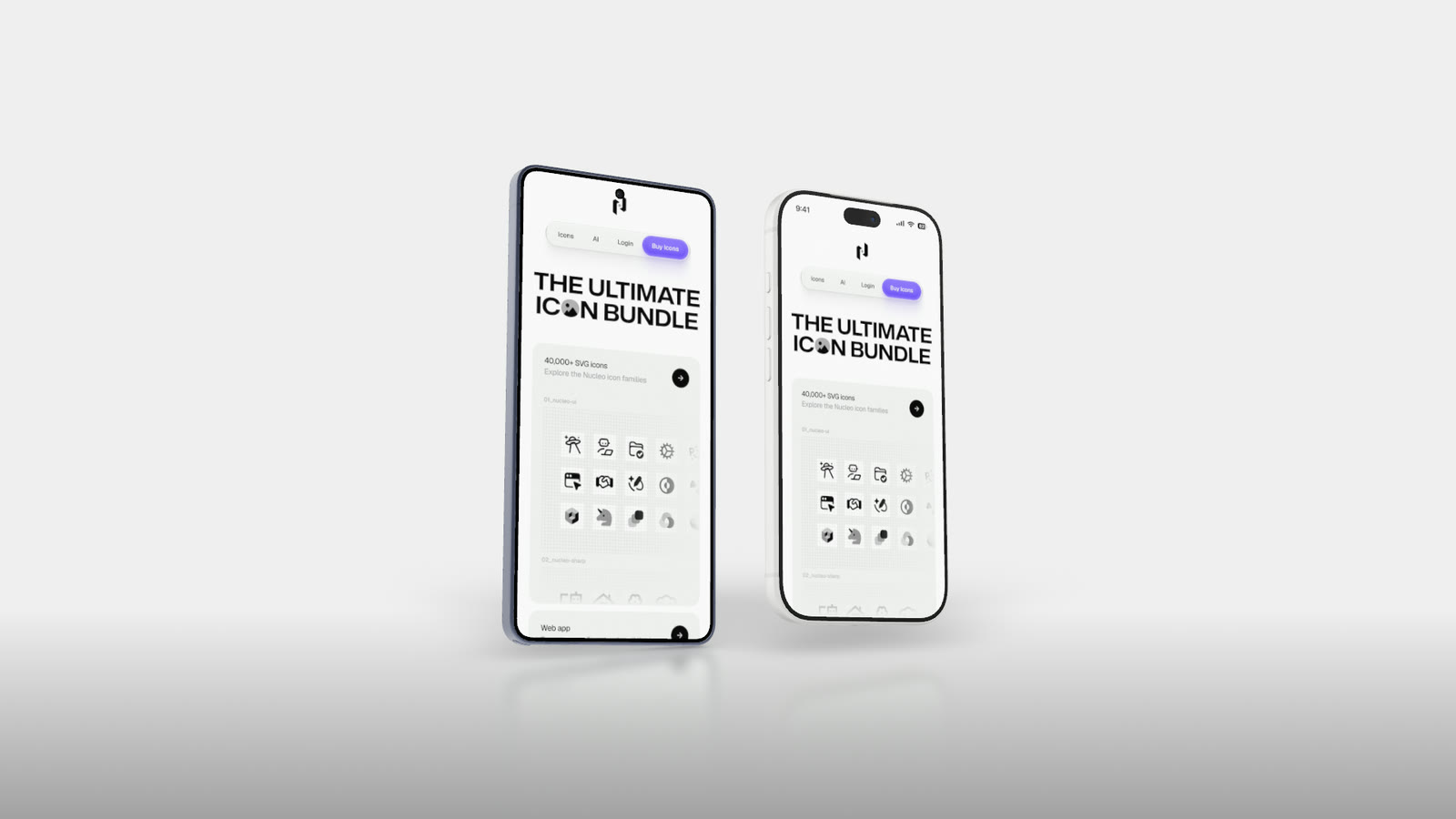
Both platforms in one shot, each phone with its own screen. Shown: nucleoapp.com.
Google Play wants plain screenshots
A phone mockup suits your website, a launch post, a Product Hunt gallery or a pitch deck. It is not what Google Play wants in your listing. Google's preview assets guidance (checked on 13 November 2026) says screenshots "must demonstrate the actual in-app or in-game experience" and lists "device imagery (as this can become obsolete quickly or alienate some users)" among elements to avoid.
| Asset | Google Play requirement |
|---|---|
| Screenshots | At least 2 across device types, up to 8 per device type; JPEG or 24-bit PNG, no alpha |
| Screenshot size | 320 px to 3840 px; the long side no more than twice the short side |
| For promotion (apps) | At least 4 screenshots, 9:16 at 1080 x 1920 or more, or 16:9 at 1920 x 1080 or more |
| Feature graphic | 1024 x 500, JPEG or 24-bit PNG, no alpha |
| Preview video | A public or unlisted YouTube link with ads off; only the first 30 seconds autoplay |
Google also asks that captions take up no more than 20% of a screenshot and avoid words like "Best", "#1" or "Top". So the split is simple: plain, captioned captures for Play, the 3D phone everywhere you control the page. The same clean captures serve both.
Frequently asked questions
Can I make an Android video mockup, not just an image? Yes. Use a screen recording as the screen, add camera moves on the timeline and export a video. The video mockup generator page covers the timeline.
Can I use these mockups as my Google Play screenshots? Google asks for the actual in-app experience and advises against device imagery, so use plain captures in the listing and the mockups on your own channels.
The short version
Choose the phone your audience recognises, capture at native resolution with a tidy status bar, and turn the phone just enough to show it is a phone. Keep the Play listing plain, and let the 3D Galaxy or Pixel carry your website and launch. Our guide to device mockups covers the composition choices that apply to every device.
Make your product look premium
Your work deserves more than just a screenshot. No download, no account required. Check it out now.
Open editor