App Store preview videos: Apple's rules, sizes and how to make one
Apple's current App Preview rules: 15 to 30 seconds, up to 30 fps, 886 x 1920 for current iPhones, and only screen captures of the app. How to plan, record and edit one.
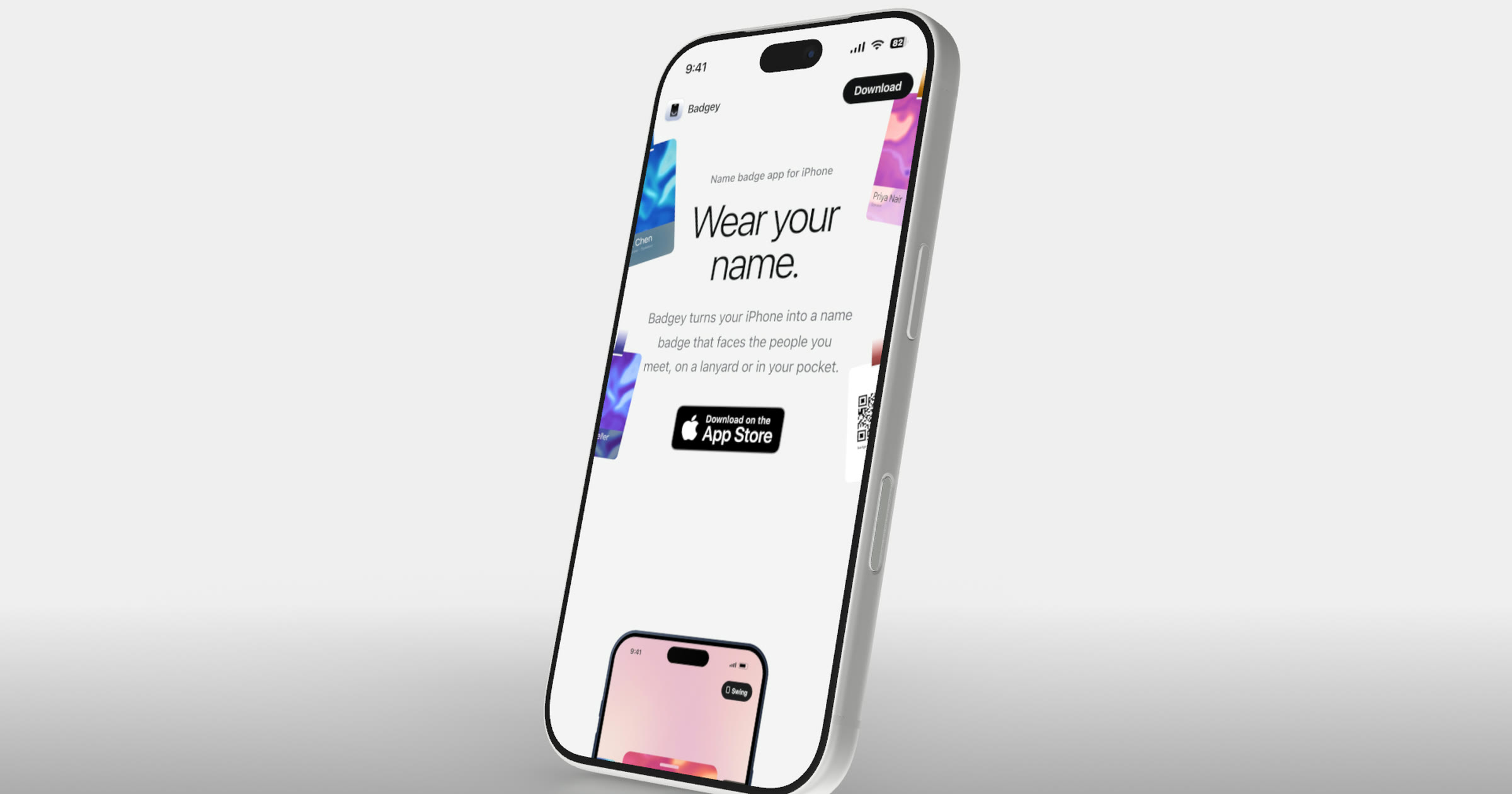
Short answer: An App Store preview is a 15 to 30 second video, at up to 30 fps, made only from screen captures of your app, with optional text overlays and narration. Current iPhones take 886 x 1920 (portrait) or 1920 x 886 (landscape), iPad takes 1200 x 1600 or 1600 x 1200, and Mac takes 1920 x 1080. You can upload up to three per device size and language. Because the preview has to show the app itself, a rotating 3D phone belongs on your website and launch posts, not in the preview slot.
The preview autoplays at the top of your product page, before your screenshots, so it is often the first moving look at your app. Plan it as carefully as the screenshots, with one extra constraint: Apple is strict about what the footage may contain.
Apple's specs, in one table
From Apple's App preview specifications, checked on 13 November 2026:
| Requirement | Apple's specification |
|---|---|
| Length | 15 to 30 seconds |
| Frame rate | Up to 30 fps |
| File | Up to 500 MB; H.264 (.mov, .m4v or .mp4) or ProRes 422 HQ (.mov) |
| H.264 bit rate | 10 to 12 Mbps target |
| Audio | Stereo, 256 kbps AAC, 44.1 or 48 kHz |
| How many | Up to 3 per device size and language |
| Poster frame | 5 seconds in by default; you can choose another |
Record at the device's native resolution, then export at the accepted size:
| Display | Examples | Portrait | Landscape |
|---|---|---|---|
| Current iPhones (Dynamic Island or Face ID) | iPhone Air, iPhone 18 Pro, iPhone 17, iPhone 16e | 886 x 1920 | 1920 x 886 |
| iPhone with Home button, large | iPhone 8 Plus | 1080 x 1920 | 1920 x 1080 |
| iPhone with Home button, medium | iPhone SE (2nd and 3rd generation), iPhone 8 | 750 x 1334 | 1334 x 750 |
| iPad 13", 11" and 10.5" | iPad Pro, iPad Air | 1200 x 1600 | 1600 x 1200 |
| Mac, Apple TV | Landscape only | 1920 x 1080 | |
| Apple Vision Pro | Landscape only | 3840 x 2160 |
If your interface is the same across sizes and languages, upload only the highest resolution required and App Store Connect scales it down. A preview whose aspect ratio differs from your screenshots moves to a separate "A Closer Look" section.
Only screen captures of the app are allowed
App Review Guideline 2.3.4 says previews "may only use video screen captures of the app itself", and that you "can add narration and video or textual overlays to help explain anything that isn't clear from the video alone." Apple's app preview guidance adds:
- no footage of people holding or tapping a device;
- no prices, since they vary by region;
- no seasonal or timely references;
- if features need an in-app purchase, a subscription or a login, say so.
A 3D phone turning in space, or your screen placed inside a rendered iPhone, is not a screen capture of the app. Keep the preview to your app's own screen, filling the frame, with text where it helps.
Plan it for a muted autoplay
Previews play muted by default, and show the poster frame when autoplay is off. So the first seconds and the poster frame carry the message, and on-screen text does the explaining. A structure that fits 15 to 30 seconds:
- The core action. The one thing the app does best, shown happening.
- Two or three supporting moments. A second feature, a result, a detail. One idea each.
- The settled state. A screen that sums up the value, with any required disclosure.
Keep each caption to one idea and leave it up long enough to read twice. If you also make screenshots, use the same captions and order; our guide to App Store screenshots covers that set.
Record short, clean takes
- Use real, believable data. Empty states look unfinished in motion.
- Tidy the status bar before you record: a full battery, a neutral time, no notifications.
- Move slowly. Scroll and tap at the pace you want the viewer to follow, and pause on each result.
- One moment per take. Short takes are easier to trim and reorder than one long run.
Record on the phone with iOS screen recording, in QuickTime Player on a Mac with the phone connected, or in the Simulator.
Cut the preview in Ultramock's Flat mode
Ultramock is built around 3D devices, but its Flat mode presents a screen with no device, which is what the preview slot needs.
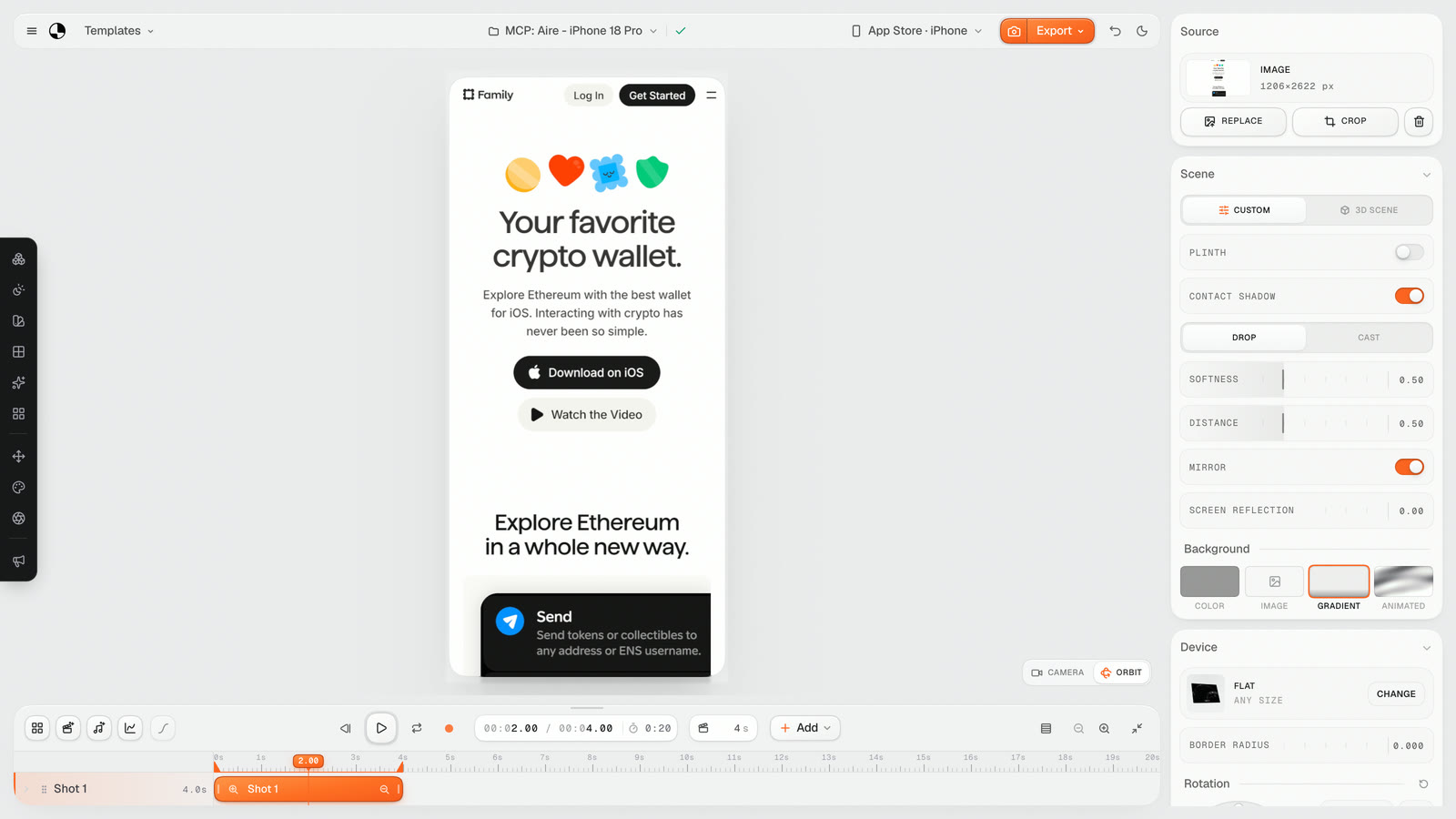
Flat mode with the corner radius at 0: the recording fills the frame, with no device around it. Shown: family.co.
- Choose Flat and drop in your first recording. Trim it to the moment you want.
- Set a custom video size of 886 x 1920 (or 1920 x 886 for landscape). Ultramock's App Store Video presets suit Mac, Apple TV and Home-button iPhones, not current iPhones.
- Let the recording fill the frame. Corner radius at zero, border and depth effects off, the camera straight on.
- One shot per take, in the order you planned, with simple cuts.
- Add layered text and, if you want it, music or a voiceover on the audio track.
- Export an MP4 at 30 fps, 15 to 30 seconds long, and check it against Apple's table before uploading.
The App Store presets size the output; they don't submit the app or guarantee App Store Connect accepts the file. If it flags the encoding, a free tool such as HandBrake can re-encode to Apple's bit rate and audio settings.
On Free you can plan it, not ship it. Free gets five images a week with no account, and one video a week up to 30 seconds with a free account, all with an Ultramock watermark. The free video is 1280 × 720 landscape, which is not an accepted preview size, and the watermark isn't part of your app. Exporting the real preview needs Pro ($20 a month, or $120 a year), which adds custom sizes, portrait included, and no watermark. Pro also offers 60 fps; choose 30 for Apple.
Put the same takes on a 3D iPhone everywhere else
The screen-capture rule covers the preview slot only. On your landing page, launch posts, a Product Hunt gallery or a pitch, a device makes the same footage easier to place, and that is where Ultramock's 3D iPhones and camera moves earn their place.
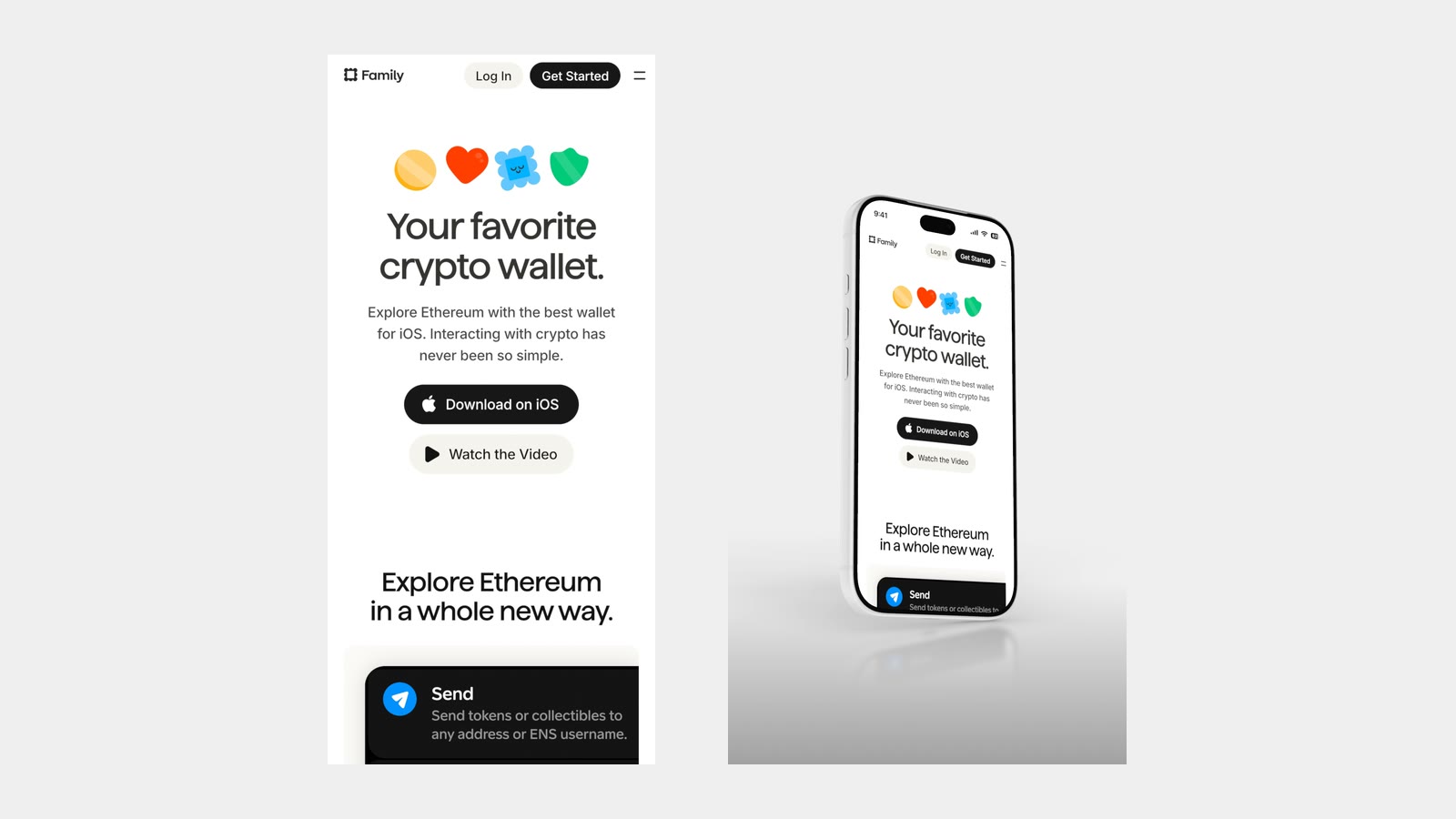
The same take, cut flat for the App Store (left) and on a 3D iPhone for your site (right). Shown: family.co.
Record your takes once, cut the Flat version for the App Store, then reuse them on an iPhone mockup for the website and launch. From one screenshot to a launch video covers the camera side.
Frequently asked questions
Is an App Store preview required? No. Apple lists previews as optional; screenshots are required. Add one when motion explains the app better than stills.
Can one preview cover iPhone and iPad? No. iPad takes its own sizes (1200 x 1600 or 1600 x 1200), so export a separate cut for it, ideally recorded on an iPad.
Can an Apple Watch app have a preview? Apple's specifications list sizes for iPhone, iPad, Mac, Apple TV and Apple Vision Pro, and none for Apple Watch. Our Apple Watch mockups post covers the watch screenshots instead.
Before you upload
Your app's own screen, 15 to 30 seconds, one idea per moment, captions that work without sound, exported at 886 x 1920 and 30 fps for current iPhones. Accepted sizes change as new devices ship, so check Apple's specifications again before each submission.
Make your product look premium
Your work deserves more than just a screenshot. No download, no account required. Check it out now.
Open editor