Directing mockups and launch videos from Claude, ChatGPT or Cursor
How to connect an AI assistant to Ultramock's MCP server and direct device mockups and launch videos in plain words: what it can do, what it doesn't, how to brief it, and the plan and limits.
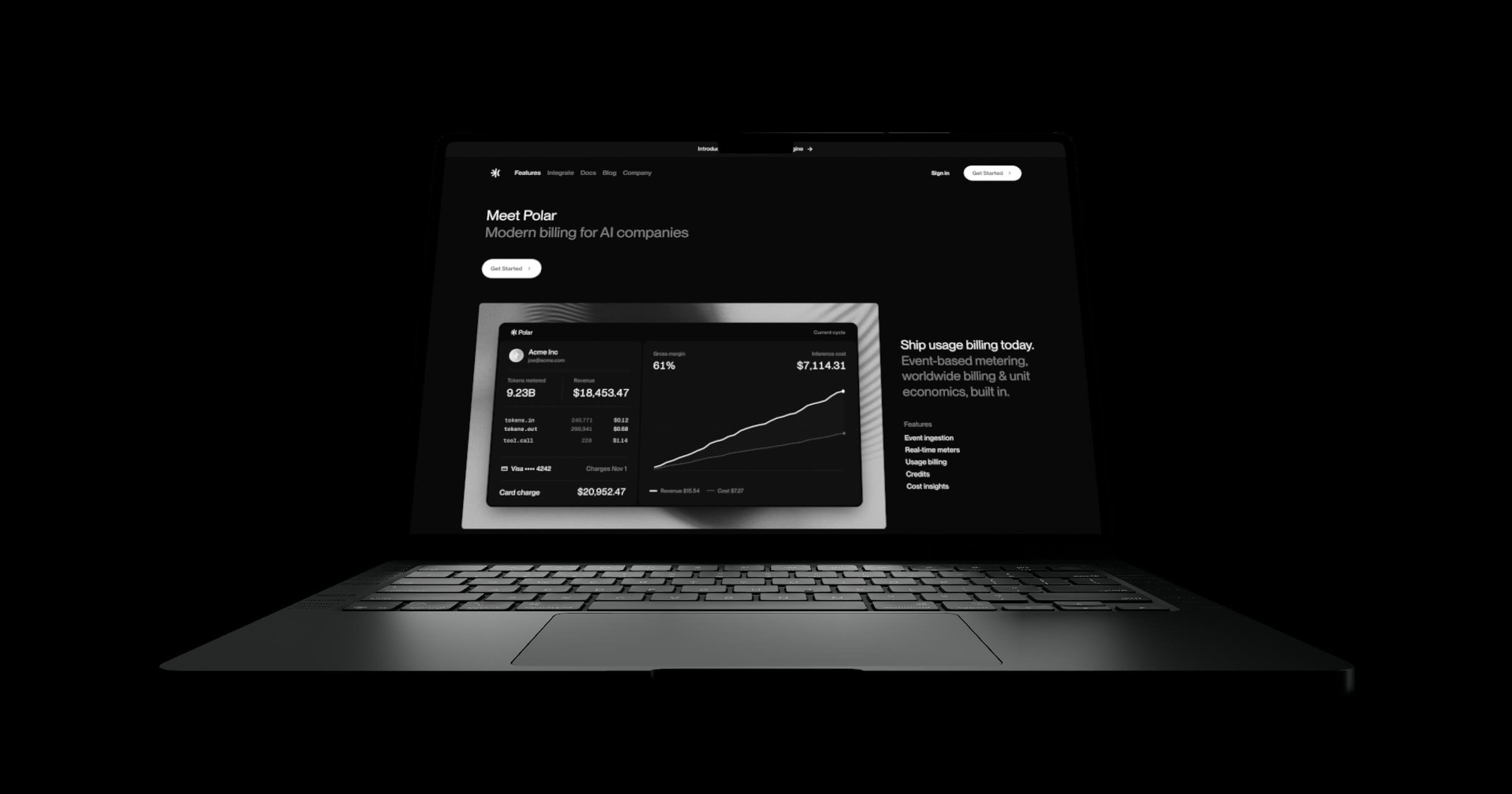
Short answer: Connect Claude, ChatGPT, Cursor or another MCP client to Ultramock's MCP server, give it your real screenshots or recordings, and describe the result you want: "put this dashboard on a MacBook Pro at a three-quarter angle", or "turn these three screens into a 20-second launch video ending on our logo". The assistant builds it in a project you can have open, its changes appear as they land, and you can take over by hand at any point. It needs Ultramock Pro, allows 1,000 tool calls a day, is in beta, and previews and exports run in your own open Ultramock tab.
Most of the time spent on a product visual goes into small decisions: which device, which angle, how long each shot holds, where the text goes. An assistant connected to the editor lets you make those decisions in words and see them applied, while the result stays an ordinary Ultramock project you can keep editing.
What MCP is
The Model Context Protocol is "an open-source standard for connecting AI applications to external systems" (MCP documentation, checked on 13 November 2026). Ultramock runs a remote MCP server: the assistant you already use connects to it over the internet, signs in with your Ultramock account, and can then read and edit your projects.
What your assistant can do in Ultramock
- Put your screens on devices: any of the 19 3D devices or Flat mode, with the angle, lighting, depth of field and effects described in a sentence. Up to 4 devices can share one shot on the Custom scene background.
- Build a video from several shots, with camera moves, text, transitions and music, ending on your logo if you ask.
- Read your brand from your website (colours, fonts and logo), and bring in a screenshot or screen recording of the site.
- Check its own work: it reviews the video for unreadable text and rushed moves and shows you preview frames.
- Work alongside you. You can edit while it works or pause it from the editor; it can undo its own steps without touching yours, and you can restore the project to how it was before.
- Export when you ask, in your open Ultramock tab.
What it doesn't do
- It doesn't make up screens. It works from your own screenshots, recordings and website. If you want a new interface, design it first.
- It isn't a hosted rendering service. It can edit a saved project at any time, but previews and exports run in your own open Ultramock tab.
- It doesn't include an AI subscription. Your Claude, ChatGPT or Cursor plan is separate.
- It has its own limit: 1,000 tool calls a day on Pro (each change or check is one call), separate from export limits.
- It's in beta. Expect it to need a correction now and then.
Connect it in three steps
You need Ultramock Pro ($20 a month, or $120 a year). Then:
- Open the MCP page in your Ultramock account and pick your assistant.
- Add Ultramock to the assistant. Claude Code takes one terminal command; Cursor and VS Code open with Ultramock filled in; Claude, ChatGPT, Codex and OpenCode come with step-by-step setup.
- Sign in. Most assistants sign in through your browser. For a client that can't, create an API key on the same page.
Other clients that connect to a standard remote MCP server with sign-in or an API key should work too, and you can disconnect an assistant at any time. The AI agents page shows each setup.
Brief it the way you would brief a designer
The assistant turns a clear brief into editor settings; it can't guess what you didn't say. Name five things:
| Say | Why it matters | Example |
|---|---|---|
| The material | It only uses what you give it. | "These three app screens" |
| The device | Sets the context for the viewer. | "On an iPhone 17 Pro" |
| The destination | Decides the shape and length. | "A 9:16 teaser for Reels" |
| The pace | Calm and fast videos are built differently. | "A balanced pace, 20 seconds" |
| The ending | Viewers remember the last frame. | "End on our logo" |
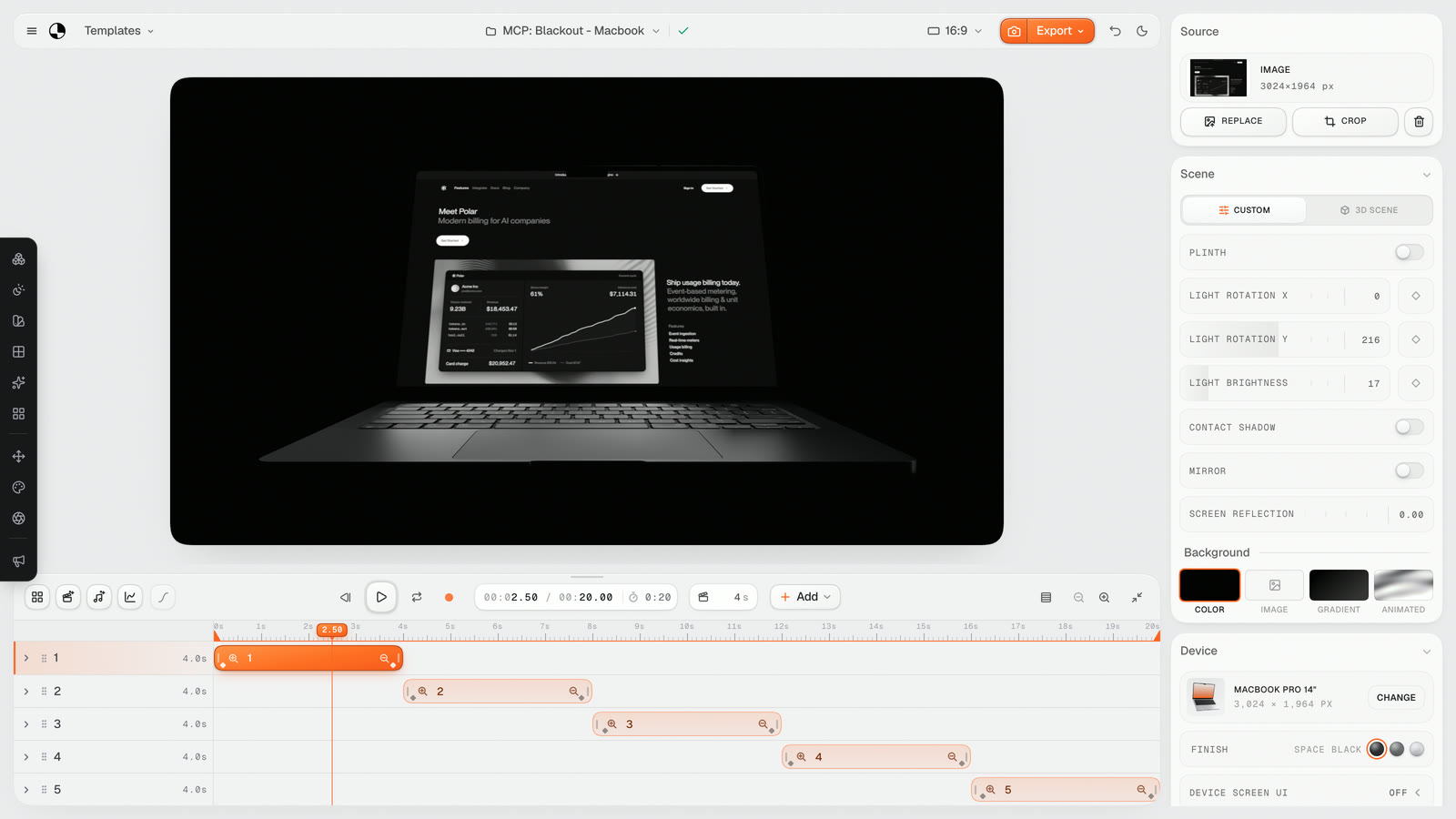
A project the assistant built, open in the editor: every shot, camera move and setting is there to change by hand. Shown: polar.sh.
Briefs that work:
- "Put this dashboard screenshot on a MacBook Pro at a three-quarter angle, against a dark backdrop." One device, one angle, one background: a still in a single step.
- "Read the brand from our website and build a 9:16 teaser in its colours and fonts." The look comes from your site, not the assistant's taste.
- "In the project I have open, slow down the second shot and add a caption to the third." Small edits to work in progress, named by shot.
For a particular look, describe it in visual terms ("soft shadows, light background, shallow depth of field") rather than words like "premium" or "clean", which mean different things to everyone.
Treat the first pass as a draft
Keep the project open and watch the changes land. Ask for preview frames at the moments you care about, or scrub the timeline yourself. Correct in words ("hold the second shot longer") or by hand; your edits and the assistant's don't block each other. When you are happy, ask it to export or press Export yourself.
An assistant is fastest when a job is easy to describe and slow to do by hand: a first cut of a multi-shot launch video, the same layout across many screens, or a teaser rebuilt in a new shape. Fine judgement you can see but not easily put into words, like the exact moment a move should settle, is quicker on the timeline. From one screenshot to a launch video covers that manual side.
Frequently asked questions
Does the assistant need the editor open? Not to build or edit: changes save to the project either way. Previews and exports render in your browser, so for those the project must be open in Ultramock.
Is it included in the free plan? No. The MCP server is part of Pro and is in beta.
The short version
Connect your assistant once, hand it real material, and brief it with the device, destination, pace and ending. Let it build the first pass, then finish it in words or by hand. The project stays yours, and you decide when it exports.
Make your product look premium
Your work deserves more than just a screenshot. No download, no account required. Check it out now.
Open editor