Apple Watch mockups: how to present a watch app so it reads
How to make an Apple Watch mockup that reads at a glance: Apple's current watch screenshot sizes, capturing clean screens from the Simulator or a watch, and staging them on a 3D Apple Watch Ultra 3.
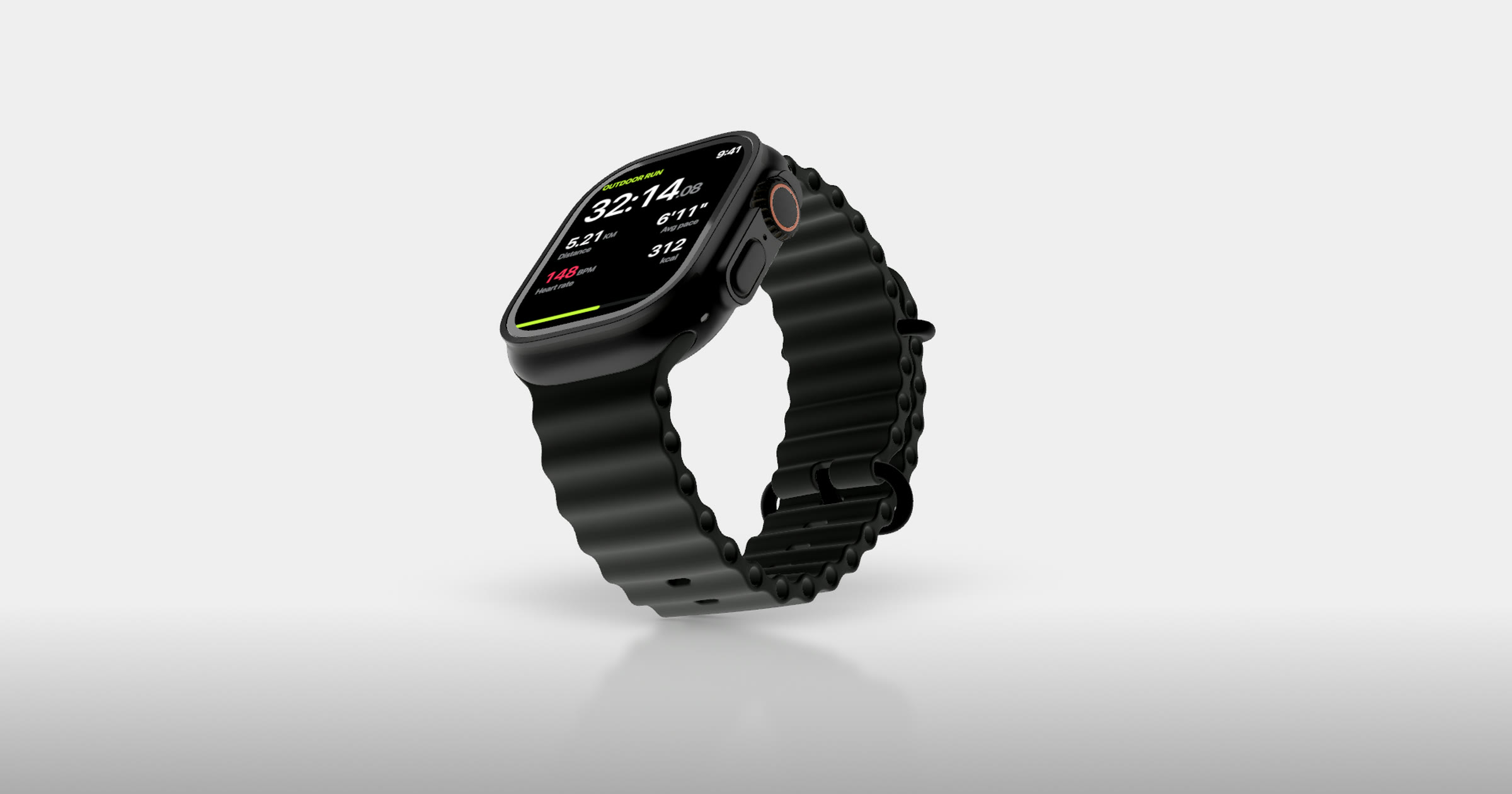
Short answer: Capture your watch screens at native size from the watchOS Simulator or a paired watch (the App Store takes 422 x 514 for Apple Watch Ultra 3 and Ultra 4, and five other sizes for other models). For the store listing, upload those screenshots as they are. For your website, launch posts and decks, put them on a 3D watch: Ultramock's Apple Watch Ultra 3, in titanium or black, is free to use. Turn it so the case, strap and Action button read, keep one idea per screen, and pair it with your iPhone app when there is one.
A watch app is the hardest product to present well. The screen is tiny, most watchOS interfaces sit on black, and a flat screenshot on its own reads as a rounded black rectangle with some text in it. The watch around it is what tells people what they are looking at.
Apple's watch screenshot sizes
If your app runs on Apple Watch, App Store Connect requires watch screenshots, at one of these sizes (screenshot specifications, checked on 13 November 2026):
| Size (pixels) | Apple Watch models |
|---|---|
| 422 x 514 | Ultra 4, Ultra 3 |
| 410 x 502 | Ultra 2, Ultra |
| 416 x 496 | Series 12, Series 11, Series 10 |
| 396 x 484 | Series 9, Series 8, Series 7 |
| 368 x 448 | Series 6, Series 5, Series 4, SE 3, SE 2, SE |
| 312 x 390 | Series 3, Series 2, Series 1 |
Upload one to ten, as JPEG or PNG with no transparency, and use the same watch size across every localisation. Apple lists no preview video size for Apple Watch, so the watch listing is stills only; our post on App Store preview videos covers the devices that take one.
Capture clean screens at native size
From the Simulator. Run your app on an Apple Watch Ultra 3 simulator in Xcode, so the screen matches the shape of the 3D watch, then:
xcrun simctl io booted screenshot watch.png
If an iPhone simulator is booted too, replace booted with the watch simulator's identifier (xcrun simctl list devices shows it). Swap screenshot for recordVideo to record an interaction.
From a real watch. In the Watch app on your iPhone, go to My Watch, General and turn on Enable Screenshots, then press the side button and the Digital Crown together. The image lands in the iPhone's Photos.
Never upscale: a 422 x 514 screen is small already, and text goes soft the moment the camera moves in. Set the data deliberately too: a believable workout, a real-looking agenda, a timer mid-count. Empty states read as unfinished on a screen this small.
Choose screens that read in a second
People look at a watch for a second or two, and a watch mockup should read in the same time:
- One idea per screen. A single metric, action or notification. If it needs scrolling to make sense, pick another screen.
- Big type and strong contrast. Large numerals and bold colour read from across a slide; dense lists don't.
- The moment the app is for. A workout in progress, a timer counting down, the next meeting. The Apple Watch mockups page shows screens like these on the watch.
- Keep the black. On a real watch the black background blends into the display's border; don't fill it with colour.
Turn the watch to a three-quarter angle
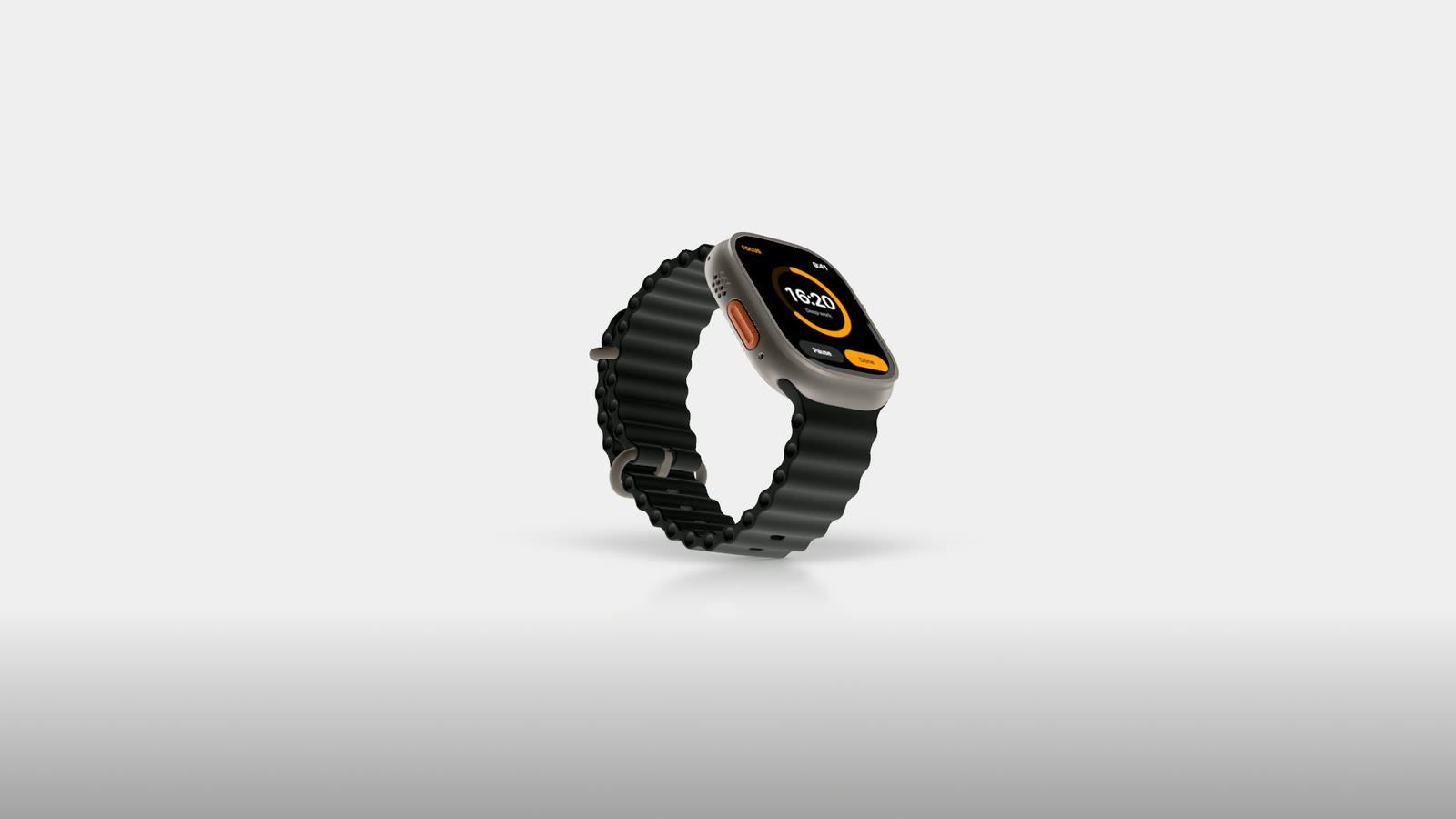
Turned three-quarters, the case edge and Action button read as a real watch.
In Ultramock:
- Pick the Apple Watch Ultra 3 and a case: Titanium reads well on dark backgrounds, Black on light ones.
- Add your screen, or a recording for a video.
- Turn it three-quarters. Showing the case, strap and Action button is what makes it read as a watch; keep the screen facing the viewer enough to stay legible.
- Move in. A watch is a small object in a wide frame; zoom until the screen reads at the size it will be seen.
- Light it. Studio lighting and reflections give the case its edges; a soft lens blur can separate it from the background while the screen stays sharp.
- Export a still, or a video when the camera moves between screens on a timeline of shots.
Free gets five images a week with no account, and one video a week up to 30 seconds with a free account, all with an Ultramock watermark. Free images go up to 1,920 px and free video is 1280 × 720 landscape. Pro ($20 a month) removes the watermark and adds larger sizes, portrait and square video, and transparent PNG and WebP images for placing the watch on your own page design.
Put the watch next to its iPhone app
Most watch apps are companions to an iPhone app, and showing both makes the relationship obvious. Up to 4 devices fit in one shot, each with its own screen, on the Custom scene background (not inside a premium 3D Scene). An iPhone showing the full view beside the watch showing the glance tells the story without a caption. Give them the same light and a similar angle, and frame the camera so the watch still reads.
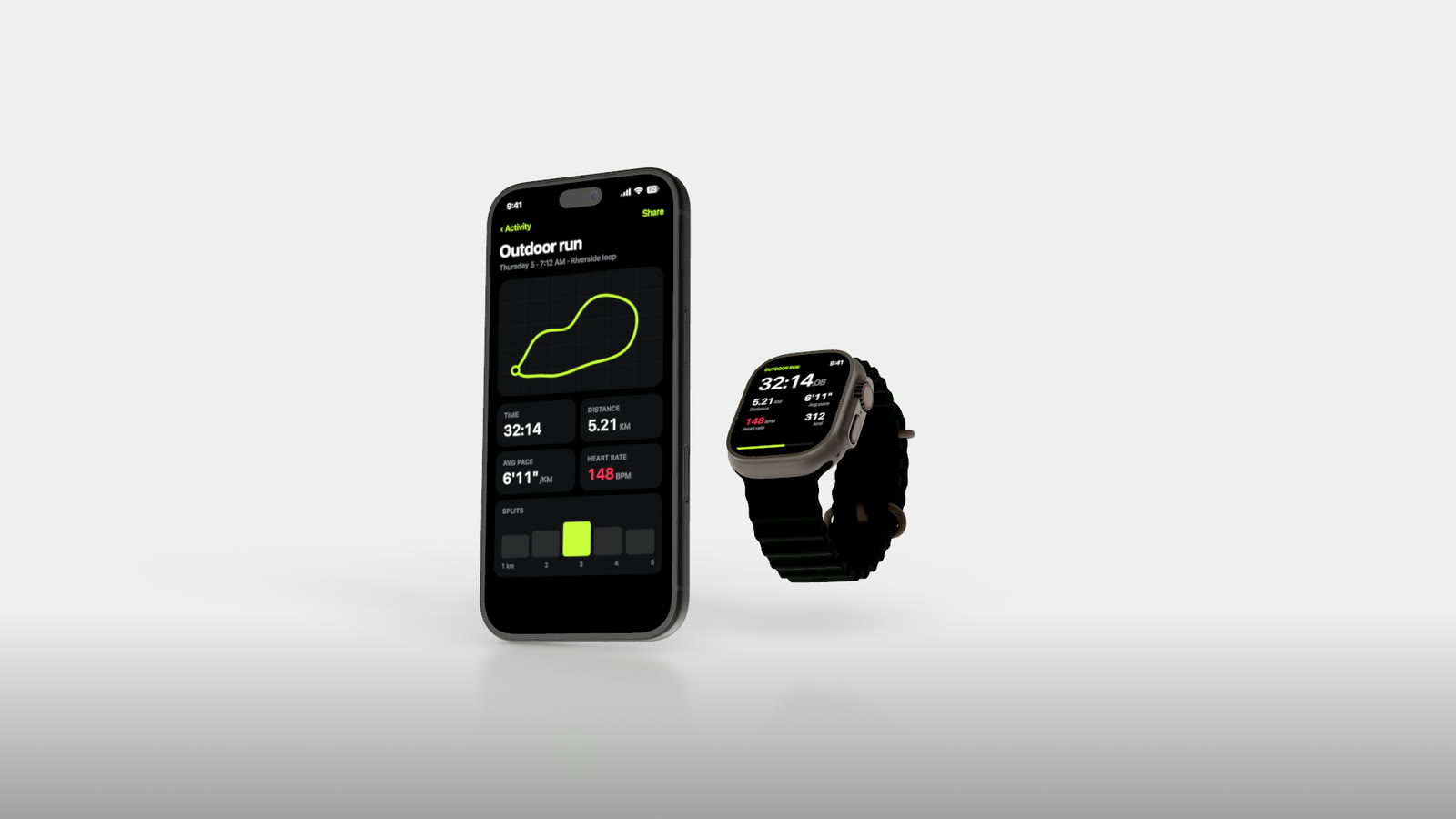
The watch and its iPhone app, showing the same run.
For video, keep the moves small
A watch screen holds less, so motion has to stay gentle: a slow push towards the screen, or a small turn that catches light on the case. Hold on each screen long enough to read, and give each part of the app its own shot rather than scrolling inside one. From one screenshot to a launch video covers easing and pacing.
Frequently asked questions
Which Apple Watch models does Ultramock have? One: the Apple Watch Ultra 3, with Titanium and Black cases, free like every device in the editor. There is no Series or SE case.
Can I use a 3D watch mockup as my App Store screenshot? Apple sizes watch screenshots to the screen alone (422 x 514 for Ultra 3 and Ultra 4), so upload the plain screenshot to the listing and use the mockup on your own channels.
The short version
Capture at native size, choose screens that read in a second, and let the watch do the explaining: a three-quarter angle, the case catching light, the iPhone beside it when the app has one. Keep the App Store set plain and at one size. Our guide to device mockups covers the composition choices that apply to every device.
Make your product look premium
Your work deserves more than just a screenshot. No download, no account required. Check it out now.
Open editor